How to use
LittleFS on ESP32
Flash is the filing cabinet. LittleFS is the filing system inside the cabinet. Without it you have a drawer full of loose bytes and no way to find anything. With it you have folders, filenames, and the same open-read-write pattern you use on any computer.
Installing the Plugin
To upload files from your computer to the board you need the LittleFS Uploader plugin for Arduino IDE 2.x. It is a one-time install - full steps with screenshots are on the plugin install page →
Adding Files to the Board
Inside your sketch folder, create a new folder called data. This is where you put the files you want to upload to the board. The folder must be named exactly data and must sit in the same folder as your .ino file:
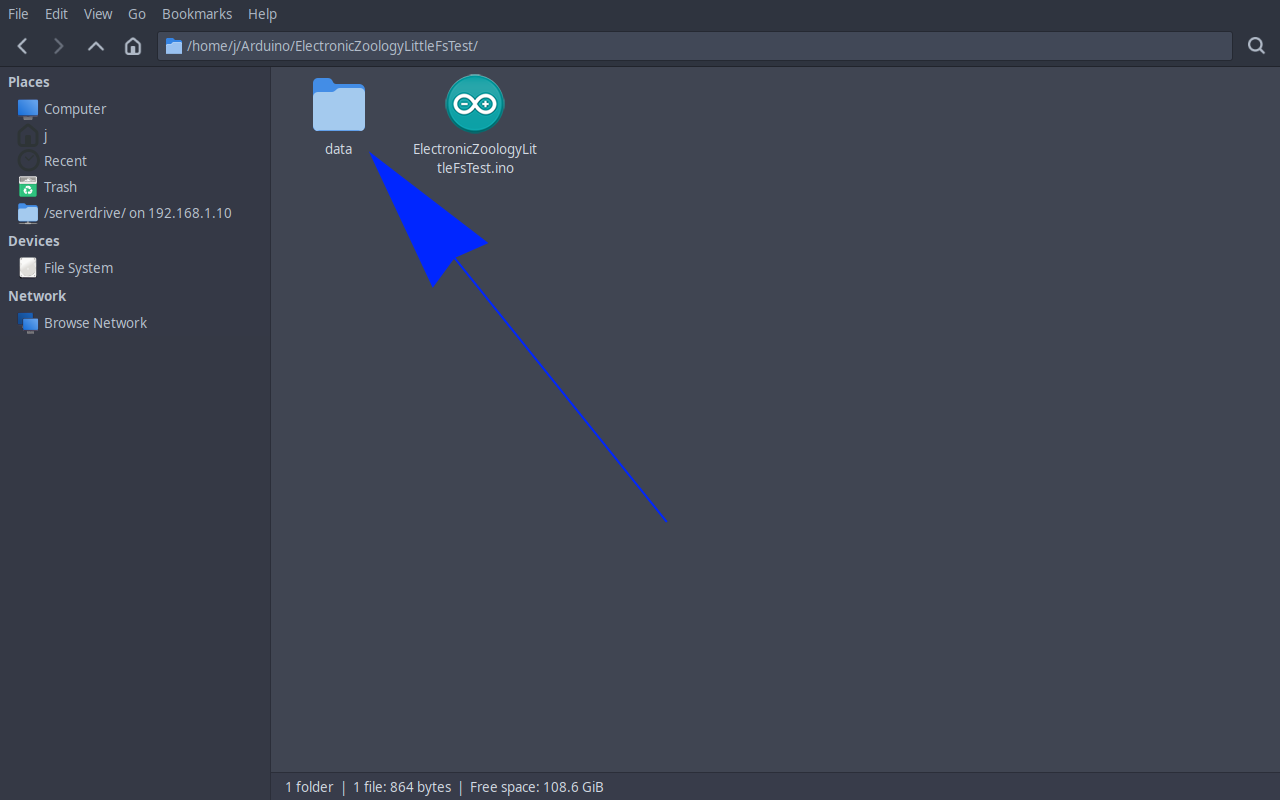
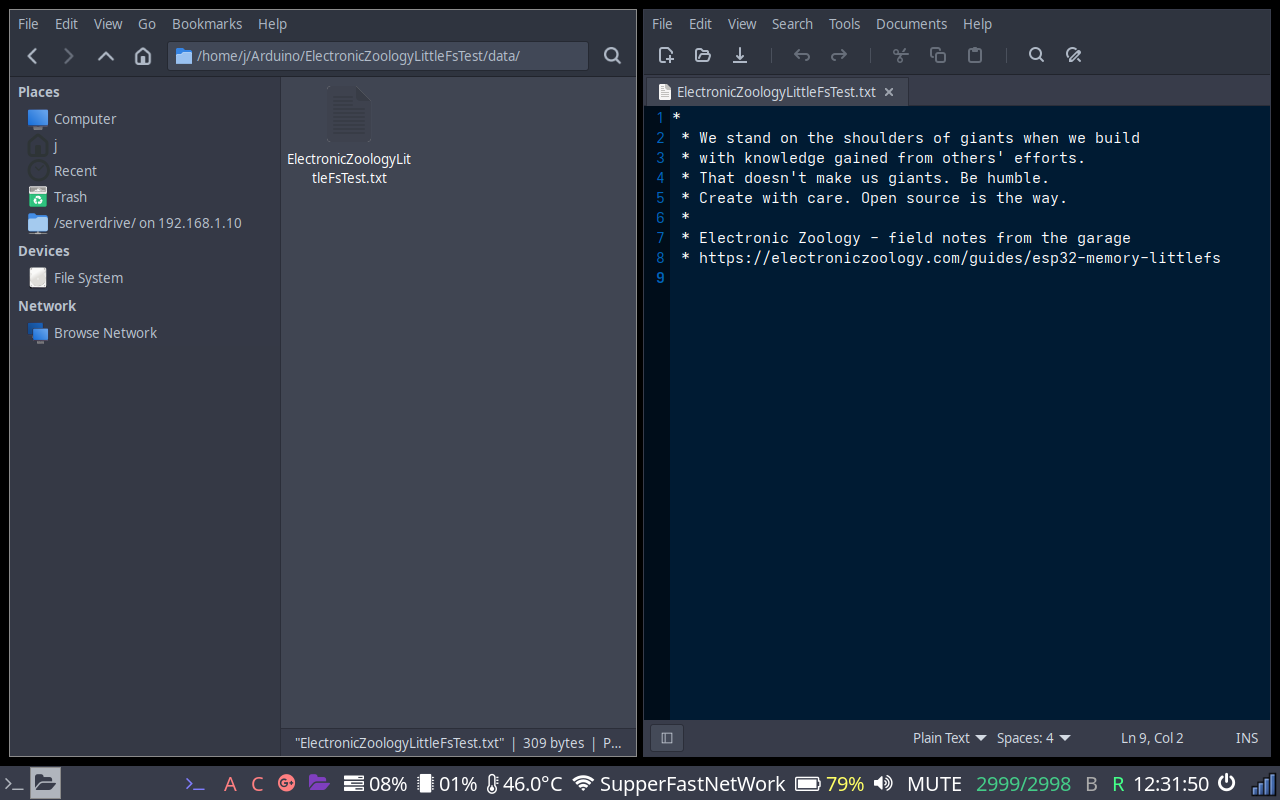
Once you have made the data folder you can put whatever you want into it. For this example a text file is used - make sure you include the .txt extension.
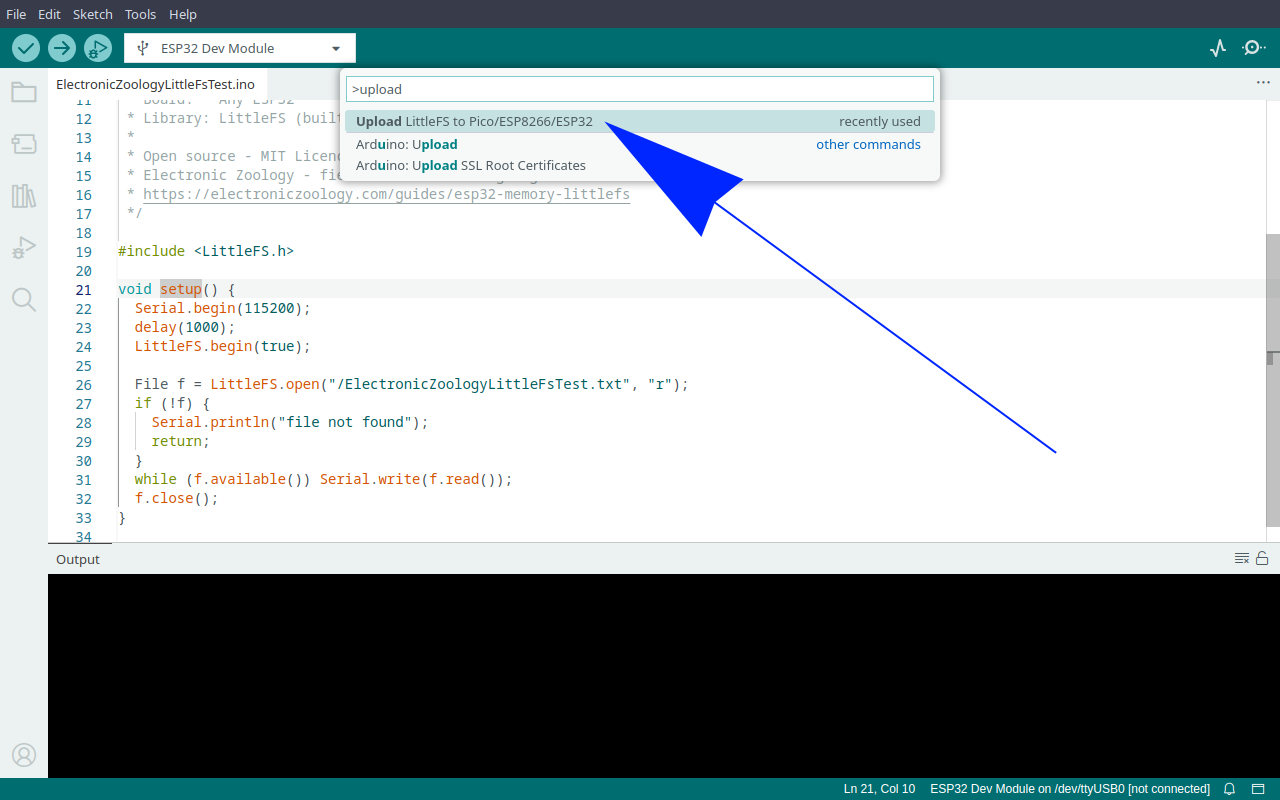
Make sure the Serial Monitor is closed before uploading. With your sketch open, press Ctrl+Shift+P to open the command palette and select Upload LittleFS to Pico/ESP8266/ESP32.
The upload wipes the filesystem partition before writing the new one, so anything your code wrote at runtime goes with it.
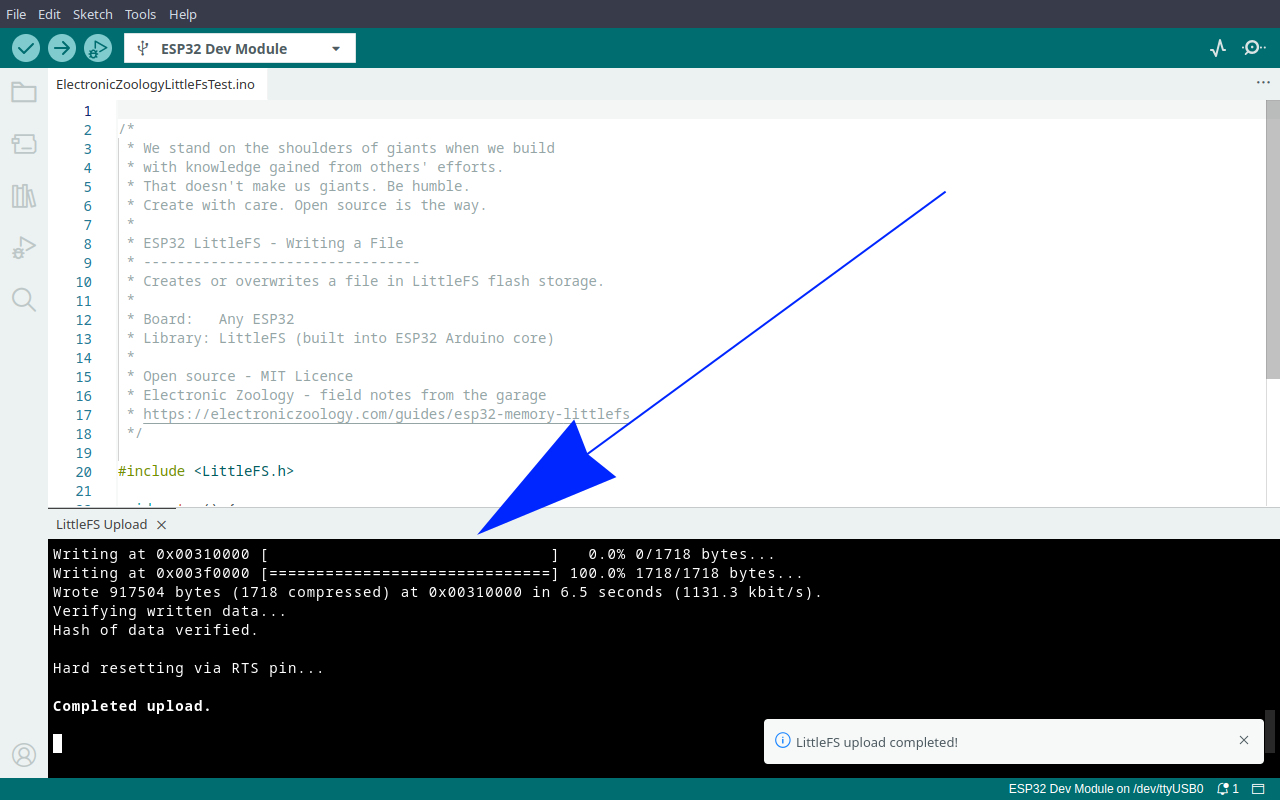
When it finishes you will see the output in the console and a notification confirming the upload.
The size of the LittleFS partition depends on the Partition Scheme selected under Tools in Arduino IDE. On a standard 4MB ESP32 the default scheme gives you about 1.5MB. If you need more space, switch to No OTA (2MB APP/2MB SPIFFS). If you need a bigger app and less file space, use Minimal SPIFFS. The Filesystem Check sketch below will report exactly how much you have.
Writing a File
Your sketch can also create and write files directly at runtime - no upload needed and no data folder required.
/*
 * We stand on the shoulders of giants when we build
 * with knowledge gained from others' efforts.
 * That doesn't make us giants. Be humble.
 * Create with care. Open source is the way.
 *
 * ESP32 LittleFS - Writing a File
 * ---------------------------------
 * Creates or overwrites a file in LittleFS flash storage.
 *
 * Board:   Any ESP32
 * Library: LittleFS (built into ESP32 Arduino core)
 *
 * Open source - MIT Licence
 * Electronic Zoology - field notes from the garage
 * https://electroniczoology.com/guides/how-to-use-littlefs-esp32
 */

#include <LittleFS.h>

void setup() {
  Serial.begin(115200);
  LittleFS.begin(true);

  File f = LittleFS.open("/notes.txt", "w");
  f.println("bazzzinga");
  f.close();
}

void loop() {}The "w" mode creates the file if it does not exist and overwrites it if it does - every write starts fresh, wiping whatever was there before. Use "a" to append instead, which keeps the existing content and adds new data to the end. The true passed to begin() formats the partition on the first run, when nothing is there to mount yet.
Checking the Filesystem
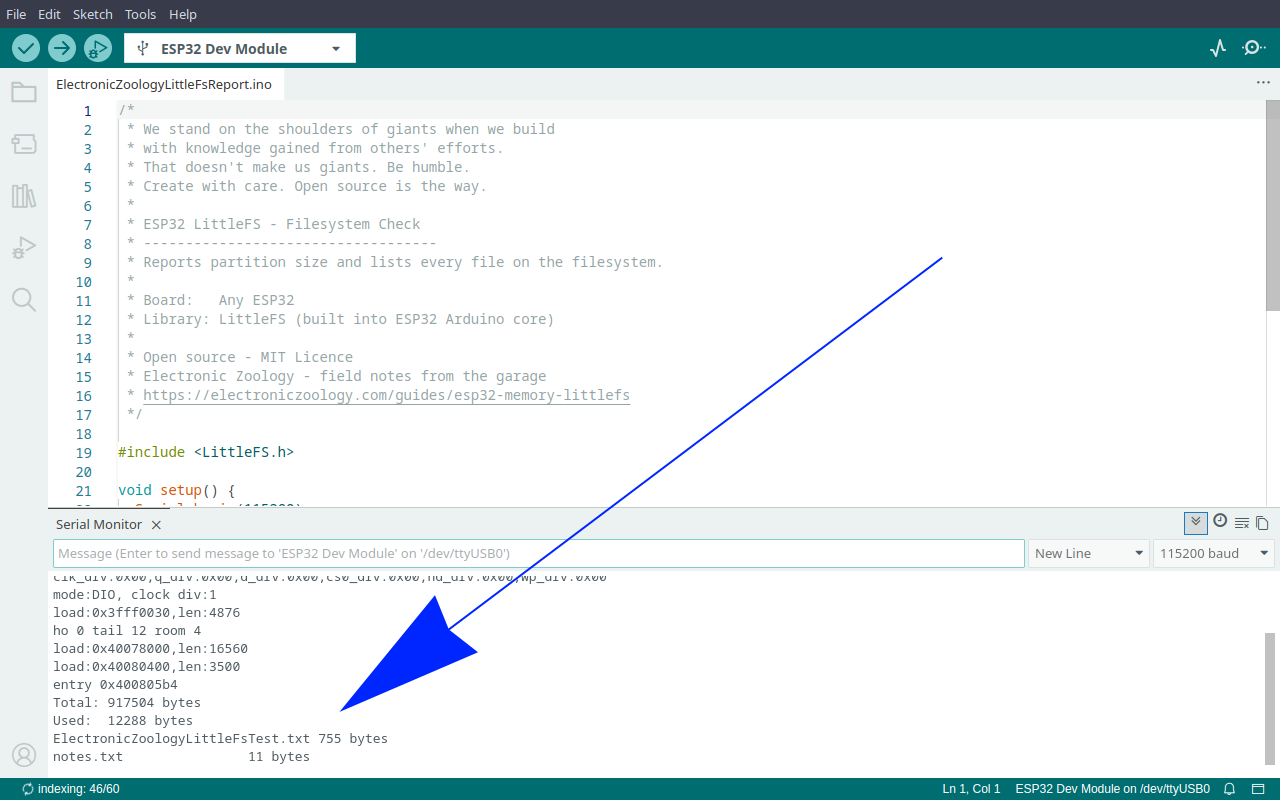
Drop this into a sketch and open the serial monitor at 115200 baud. It reports partition size and lists every file.
/*
 * We stand on the shoulders of giants when we build
 * with knowledge gained from others' efforts.
 * That doesn't make us giants. Be humble.
 * Create with care. Open source is the way.
 *
 * ESP32 LittleFS - Filesystem Check
 * -----------------------------------
 * Reports partition size and lists every file on the filesystem.
 *
 * Board:   Any ESP32
 * Library: LittleFS (built into ESP32 Arduino core)
 *
 * Open source - MIT Licence
 * Electronic Zoology - field notes from the garage
 * https://electroniczoology.com/guides/how-to-use-littlefs-esp32
 */

#include <LittleFS.h>

void setup() {
  Serial.begin(115200);
  delay(1000);

  if (!LittleFS.begin(true)) {
    Serial.println("LittleFS mount failed");
    return;
  }

  Serial.printf("Total: %u bytes\n", LittleFS.totalBytes());
  Serial.printf("Used:  %u bytes\n", LittleFS.usedBytes());

  File root = LittleFS.open("/");
  File f = root.openNextFile();
  while (f) {
    Serial.printf("%-24s %u bytes\n", f.name(), f.size());
    f = root.openNextFile();
  }
}

void loop() {}Open the Serial Monitor at 115200 baud and you will see your partition size and every file on the filesystem.
Reading a File
Once a file exists on the filesystem you can access it in different ways - via a web server so a browser can fetch it, or directly from the serial monitor. Here we will show two examples of reading from serial. Both can be dropped into any sketch that already uses LittleFS.
/*
 * We stand on the shoulders of giants when we build
 * with knowledge gained from others' efforts.
 * That doesn't make us giants. Be humble.
 * Create with care. Open source is the way.
 *
 * ESP32 LittleFS - Reading a File
 * --------------------------------
 * Opens and reads a file from LittleFS flash storage.
 *
 * Board:   Any ESP32
 * Library: LittleFS (built into ESP32 Arduino core)
 *
 * Open source - MIT Licence
 * Electronic Zoology - field notes from the garage
 * https://electroniczoology.com/guides/how-to-use-littlefs-esp32
 */

#include <LittleFS.h>

void setup() {
  Serial.begin(115200);

  if (!LittleFS.begin()) {
    Serial.println("FS mount failed");
    return;
  }

  File f = LittleFS.open("/notes.txt", "r");
  if (!f) {
    Serial.println("file not found");
    return;
  }

  while (f.available()) Serial.write(f.read());
  f.close();
}

void loop() {}The filename in LittleFS.open() must match exactly what you named the file in your data folder - including the extension. If your file is called notes.txt, the path must be "/notes.txt". If your file is called config.json, the path must be "/config.json". Get it wrong and you will hit the "file not found" branch.
This second example reads on demand - type a command into the Serial Monitor and the board dumps the file back. Useful when the board is running and you want to check what is stored without reflashing.
/*
 * We stand on the shoulders of giants when we build
 * with knowledge gained from others' efforts.
 * That doesn't make us giants. Be humble.
 * Create with care. Open source is the way.
 *
 * ESP32 LittleFS - Read File on Serial Command
 * ---------------------------------------------
 * Waits for a serial command, then dumps the file contents back.
 *
 * Board:   Any ESP32
 * Library: LittleFS (built into ESP32 Arduino core)
 *
 * Open source - MIT Licence
 * Electronic Zoology - field notes from the garage
 * https://electroniczoology.com/guides/how-to-use-littlefs-esp32
 */

#include <LittleFS.h>

void setup() {
  Serial.begin(115200);
  LittleFS.begin();
}

void loop() {
  if (Serial.available()) {
    String cmd = Serial.readStringUntil('\n');
    cmd.trim();
    if (cmd == "OpenThePodBayDoors") {
      File f = LittleFS.open("/ElectronicZoologyLittleFsTest.txt", "r");
      while (f.available()) Serial.write(f.read());
      f.close();
    }
  }

  // rest of your loop
}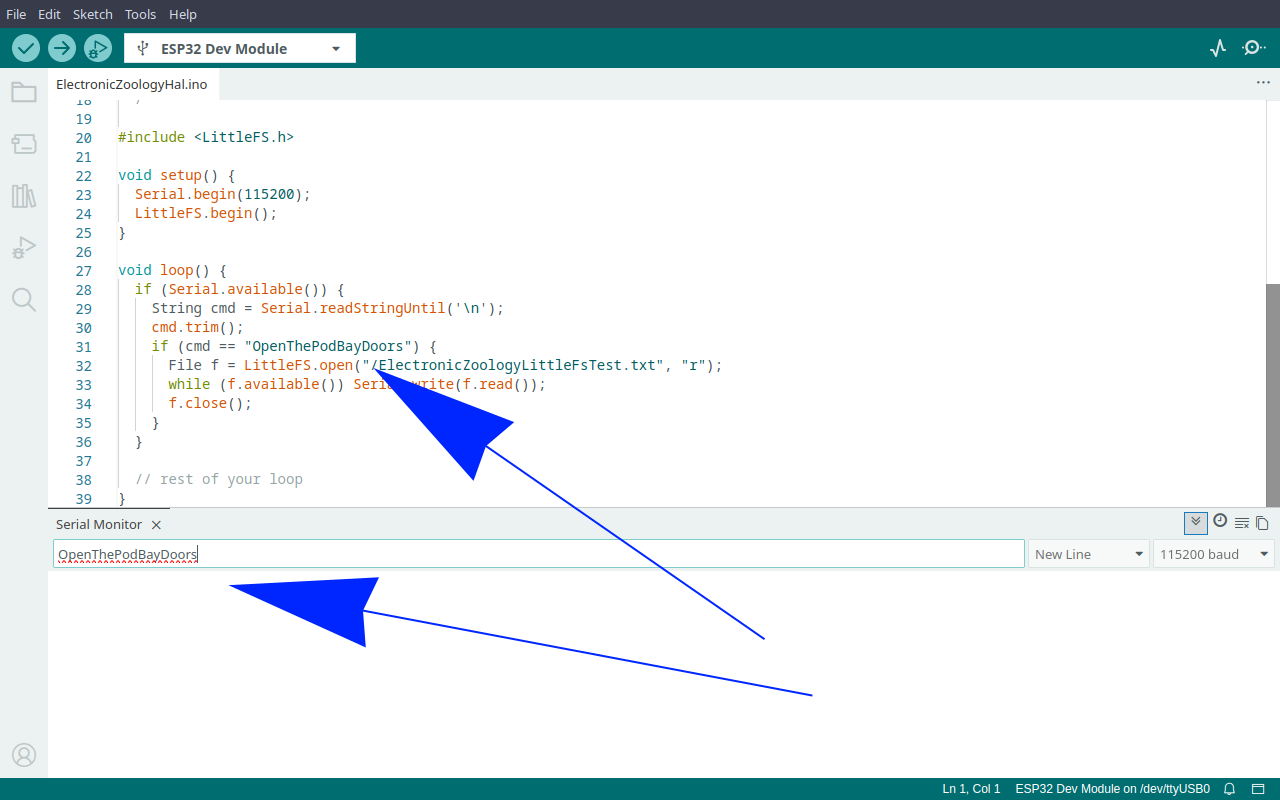
Type the command into the Serial Monitor input and hit Enter to trigger the file read.
SPIFFS
You will see SPIFFS mentioned in older guides. LittleFS replaced it. SPIFFS is deprecated, slower, and less reliable when power is cut mid-write. Use LittleFS.
Where This Is Useful
LittleFS earns its keep when you need something to persist across reboots that is not your sketch code. Common cases:
- Images and bitmaps for displays
- HTML, CSS and JavaScript for a web interface served from the ESP32
- Config files and calibration values that survive a power cycle
- A copy of the sketch itself, so the board can tell you what it is months later
The last one is the use case that turned me onto LittleFS in the first place. Covered separately in How to keep a copy of your sketch in LittleFS →